How to Write Vocal Automation in Ableton Live and Save CPU
Writing volume automation by hand in Ableton Live can be slow and repetitive, whether you're working in a professional vocal studio or producing from your home setup. RaiderPro automatically generates smooth Rider Fader automation in real time, giving your vocals a more consistent level without relying solely on compression or excessive audio boost.
In this tutorial, you'll learn how to:
- Automatically write vocal automation in Ableton Live
- Transfer Rider Fader automation to Track Volume
- Remove RaiderPro without losing your automation
- Reduce CPU usage in large sessions
🎛️ Want to try this workflow yourself?
You can follow every step in this guide using the RaiderPro free trial.
Trusted by 12,000+ producers worldwide
🎥 Video Tutorial
Step 1. Insert RaiderPro

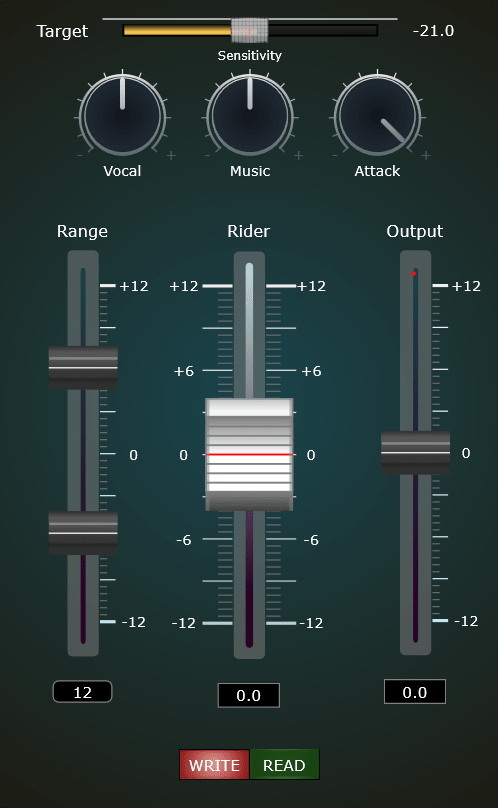
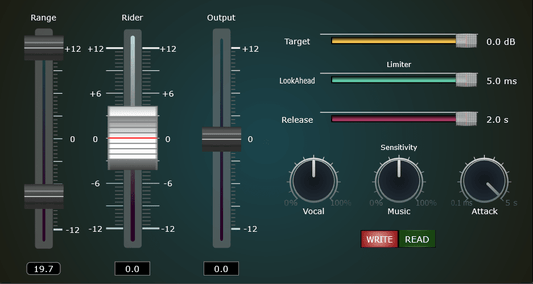
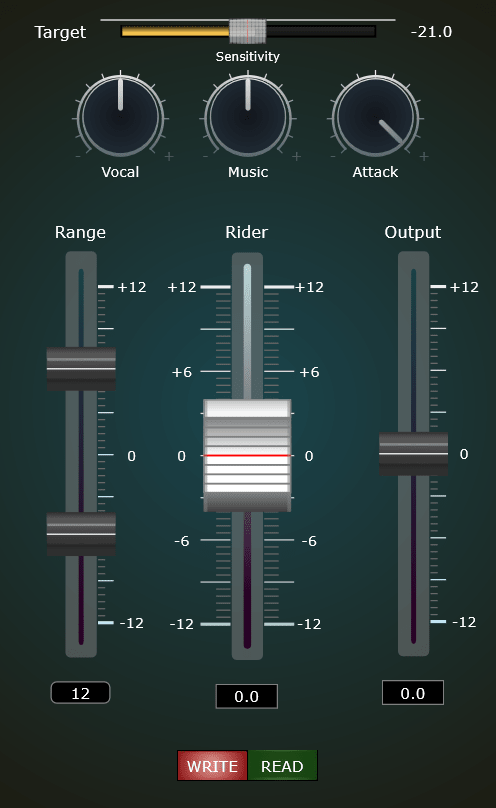
Insert RaiderPro on your vocal track. By default, the plugin opens in Write Mode, meaning it's immediately ready to generate Rider Fader automation while your session plays.
Step 2. Record the Rider Automation

Switch Ableton Live into Automation Mode and record the section of your song's vocal (or any instrument for that matter) you want to ride.
As playback continues, RaiderPro automatically writes Rider Fader automation, following the dynamics of your vocal in real time.
Instead of manually drawing automation points, RaiderPro creates smooth volume rides automatically, helping you achieve a polished vocal mix much faster.
Step 3. Switch RaiderPro to Read Mode

Once you're satisfied with the automation:
- Stop recording.
- Switch RaiderPro from Write Mode to Read Mode.
This prevents the plugin from writing additional automation while preserving everything you've already recorded.
Step 4. Re-enable the Automation

Click Re-enable Automation in Ableton Live.
The Rider Fader automation lane will become active and appear in red, allowing you to play it back and verify that the vocal rides sound exactly as expected.
Step 5. Copy the Automation to Track Volume

Now it's time to make the automation permanent.
- Select the Rider Fader automation you want to keep.
- Copy the automation.
- Change the automation destination to Mixer → Track Volume.
- Paste the automation at the exact same starting position.
Your vocal rides now control the track's volume directly instead of RaiderPro Rider Fader.
Step 6. Calibrate the Automation

Because Rider Fader and Track Volume use different reference levels, you'll need to make one quick adjustment.
- Windows: Hold Ctrl.
- macOS: Hold Command (⌘).
Click and drag the entire automation envelope vertically until the 0 dB level of the Rider Fader matches the 0 dB level of the Track Volume.
This calibration only takes a few seconds and ensures your vocal plays back exactly as intended.
Step 7. Remove RaiderPro and Save CPU
That's it! Your automation is now permanently stored inside Ableton Live.
At this point you can safely:
- Bypass RaiderPro
- Disable RaiderPro
- Remove RaiderPro entirely
Since the automation now lives on the Track Volume lane, your mix will sound exactly the same while using less CPU.
This workflow is especially useful when mixing large projects or preparing a session for collaboration, exporting, or mastering.
Why Use RaiderPro Instead of Manual Automation?
Writing automation by hand works—but it doesn't scale.
RaiderPro automatically follows your vocal performance in real time, letting you:
- Finish vocal rides in seconds instead of minutes
- Preserve natural vocal dynamics
- Reduce tedious manual editing
- Transfer automation directly to Track Volume
- Remove the plugin to save CPU
Whether you're mixing a single vocal or an entire album, RaiderPro helps you spend less time editing and more time making music.
Why Transfer Automation to Track Volume?
Keeping your automation on the track instead of inside a plugin offers several advantages:
- Lower CPU usage
- Cleaner project organization
- Easier collaboration with other producers
- No dependency on RaiderPro during playback
- Permanent automation stored directly in Ableton Live
Why Automatic Vocal Riding Sounds More Natural?
Traditional compression reduces a vocal's dynamic range by applying gain reduction based on thresholds, ratios, attack, and release settings. While compression is an essential tool for controlling dynamics, it can sometimes make vocals sound less natural when overused.
Volume riding works differently.
Instead of compressing peaks, automatic vocal riding continuously adjusts the vocal level before additional processing. This keeps quiet words audible, gently tames louder phrases, and preserves more of the original performance's natural dynamics while keeping every lyric clear and intelligible.
That's why many professional mix engineers use vocal riding alongside compression rather than relying on compression alone. By combining both techniques, you can achieve consistent vocal levels, a more transparent sound, and a vocal that sits naturally in the mix.
Conclusion
RaiderPro makes vocal automation incredibly fast by automatically writing smooth Rider Fader automation as your track plays. Once you're happy with the results, transferring that automation to Track Volume lets you remove the plugin while keeping every automation move permanently embedded in your Ableton Live project.
This workflow combines the speed of automatic vocal riding with the efficiency of lightweight sessions, making it an excellent approach for both professional and home studio productions.
Ready to Automate Your Vocals?
Stop spending time drawing volume automation by hand. RaiderPro writes smooth vocal rides in real time, helping you mix faster while keeping complete control over your automation.
👉 Get RaiderPro Lifetime License
Frequently Asked Questions
Can I remove RaiderPro after copying the automation?
Yes. Once the Rider Fader automation has been pasted onto Track Volume, RaiderPro is no longer needed for playback.
Does this reduce CPU usage?
Yes. Removing RaiderPro after transferring the automation frees CPU resources, which can be especially beneficial in larger Ableton Live sessions.
Can I edit the automation afterward?
Absolutely. Once it's stored as Track Volume automation, you can edit every automation point using Ableton Live's built-in automation tools.
Is this workflow suitable for all vocal styles?
Yes. Whether you're mixing pop, rock, rap, podcasts, voice-overs, or spoken word, this workflow helps you create consistent vocal levels quickly and efficiently.
Looking for the Best Vocal Rider Plugin?
If you're comparing RaiderPro with other vocal riding plugins, we've put together an in-depth guide covering the best options available in 2026. Learn how RaiderPro compares with Waves Vocal Rider, WaveRider, DynaRide, and other popular solutions, including their features, strengths, and ideal use cases.
Whether you're looking for a lightweight vocal rider, an all-in-one dynamics processor, or the best value for your workflow, this comparison will help you choose the right tool.
→ Read: Best Vocal Rider Plugin in 2026 – Complete Comparison